GPS tracker not working? Before calling support, try these troubleshooting steps. Most GPS tracker problems fall into a few categories: no location updates, wrong location, missed alerts, or app issues. This guide helps you diagnose the problem and often fix it yourself.
Quick Diagnosis: What's the Problem?
Identify Your Issue
| Symptom | Likely Cause | Jump To |
|---|---|---|
| No location updates at all | Power, network, or subscription | Section 1 |
| Location updates but wrong position | GPS signal or drift | Section 2 |
| Not receiving alerts | App settings or notifications | Section 3 |
| App won't load or crashes | App or phone issue | Section 4 |
| Commands not working (engine disable) | Network or device issue | Section 5 |
Section 1: No Location Updates
If your tracker hasn't updated in hours or shows "last update" from a long time ago:
Step 1: Check the Basics
Is your subscription active?
- Log into web dashboard (not just app)
- Look for account status or subscription status
- If expired, tracking stops - renew to resume
Is the vehicle powered on?
- Most trackers need vehicle battery power
- If car hasn't been driven for weeks, battery may be low
- Start the car and wait 5 minutes
Check last known location:
- Where was the vehicle when it last updated?
- Is it in a parking garage, basement, or metal building?
- Underground or covered parking blocks GPS and cellular signals
Step 2: Wait for Signal
If the vehicle is in a location with poor signal:
What happens:
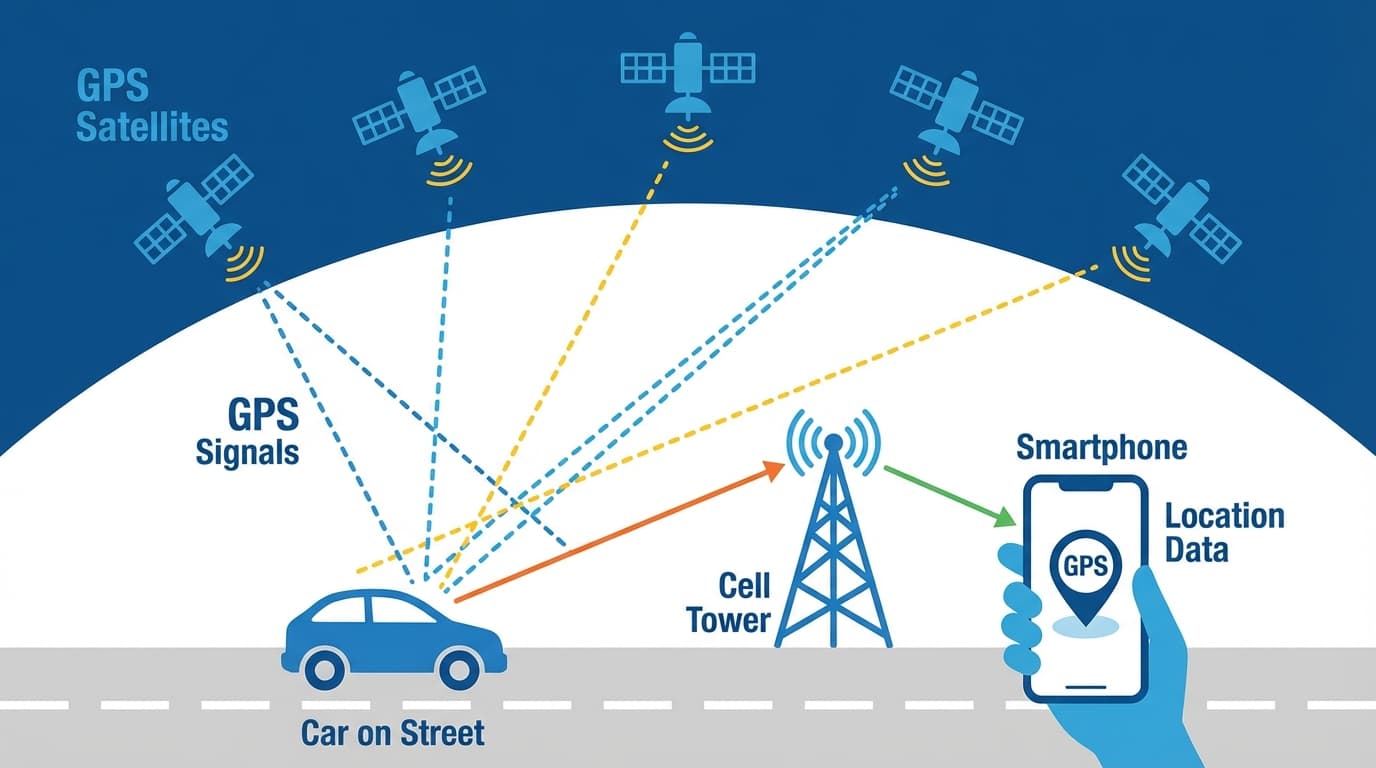
- GPS can't get satellite fix indoors/underground
- Cellular networks may not reach
- Tracker stores data and uploads when signal returns
What to do:
- Move vehicle to open area
- Wait 5-10 minutes for tracker to acquire signal
- Check app for updates
Step 3: Check for Network Issues
Verify cellular coverage:
- Is the area covered by MTN/Vodafone/AirtelTigo?
- Remote rural areas may have gaps
- Check if your phone has signal at the location
Network outages:
- Sometimes cellular networks have outages
- Check if other tracking users report issues
- Wait and try again in 30-60 minutes
Step 4: Check Power Connection
Signs of power issues:
- Tracker worked before but suddenly stopped
- Last update was when car was running
- No updates even after driving
Possible causes:
- Blown fuse in power circuit
- Loose wire connection
- Vehicle battery dead or disconnected
What to do:
- Check if car starts normally
- Contact your tracking provider for inspection
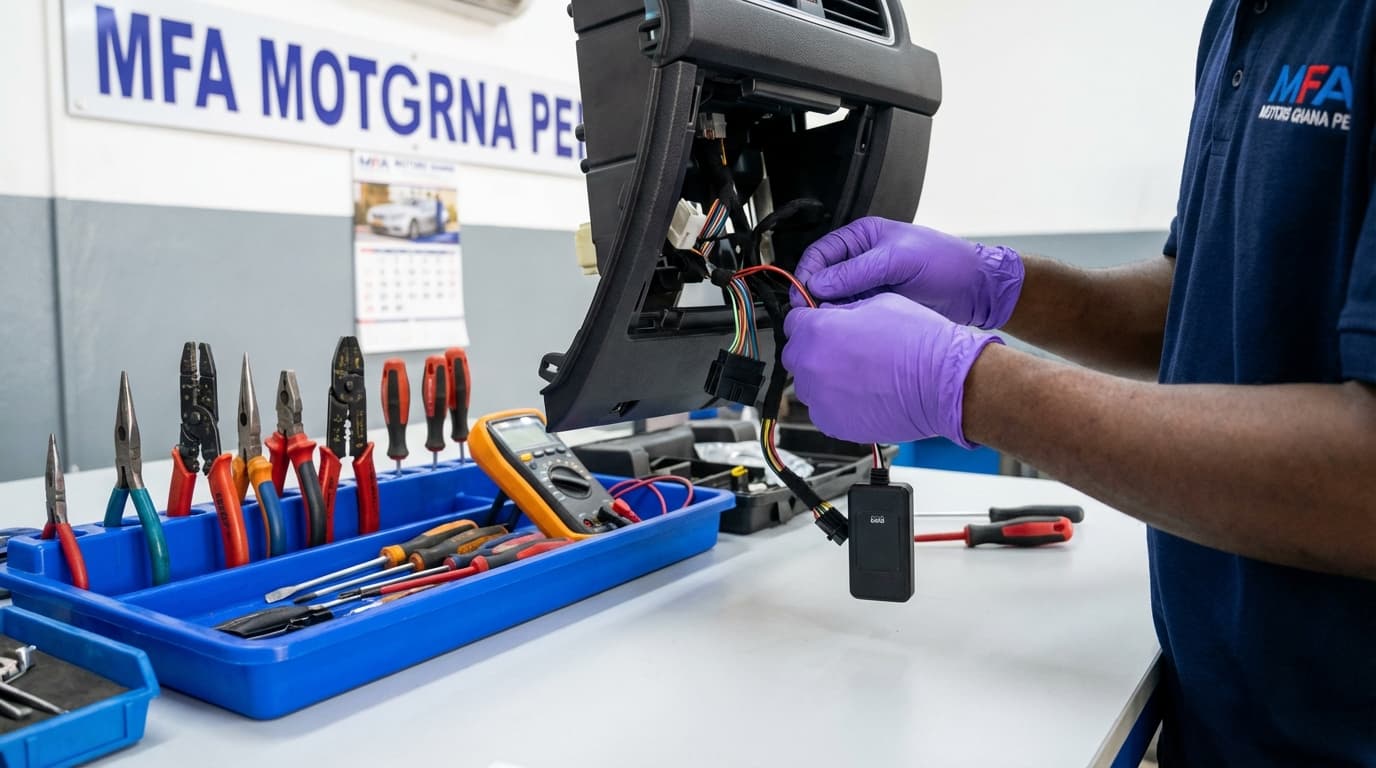
- Don't attempt to fix wiring yourself unless qualified
Section 2: Wrong Location or GPS Drift
If the tracker shows your car in the wrong place:
Normal GPS Accuracy
Expected accuracy:
- Outdoors, open sky: 3-10 metres
- Near buildings: 10-30 metres
- Covered parking: Can be off by 50+ metres
- Indoor/underground: May show last known outdoor position
GPS Drift Explained
What it is: The location "drifts" or jumps around, even when the car is parked.
Why it happens:
- Weak GPS signal (multipath reflection off buildings)
- Tracker is under metal/in enclosed space
- Poor antenna placement during installation
Is it a problem?
- Minor drift (10-30 metres) is normal
- Major drift (100+ metres) or showing different streets is abnormal
How to Fix Wrong Location
Step 1: Check current conditions
- Is vehicle in covered parking or garage?
- Are there tall buildings nearby?
- Has weather changed (heavy rain can affect signal)?
Step 2: Move to open area
- Drive vehicle to open parking lot
- Wait 5 minutes for GPS to acquire strong signal
- Check if location becomes accurate
Step 3: Evaluate installation location
- If problems persist in open areas, the tracker may need repositioning
- Contact provider for installation inspection
- Antenna may need adjustment
When to Contact Support
- Consistent wrong location even in open areas
- Location off by more than 100 metres regularly
- GPS accuracy getting progressively worse
Section 3: Not Receiving Alerts
If you're not getting notifications when you should:
Check Phone Settings
Step 1: Verify app notifications are enabled
For iPhone:
- Settings > Notifications
- Find your tracking app
- Ensure "Allow Notifications" is ON
- Enable Sounds and Badges
For Android:
- Settings > Apps > [Tracking App]
- Tap Notifications
- Ensure notifications are ON
- Check "Show notifications" is enabled
Step 2: Check Do Not Disturb
- Is DND enabled? Alerts may be silenced
- Add tracking app to DND exceptions if needed
Step 3: Check battery optimisation
- Some phones restrict background apps to save battery
- This can delay or block notifications
- Disable battery optimisation for tracking app
Check App Alert Settings
Within the tracking app:
- Are the alerts you want actually enabled?
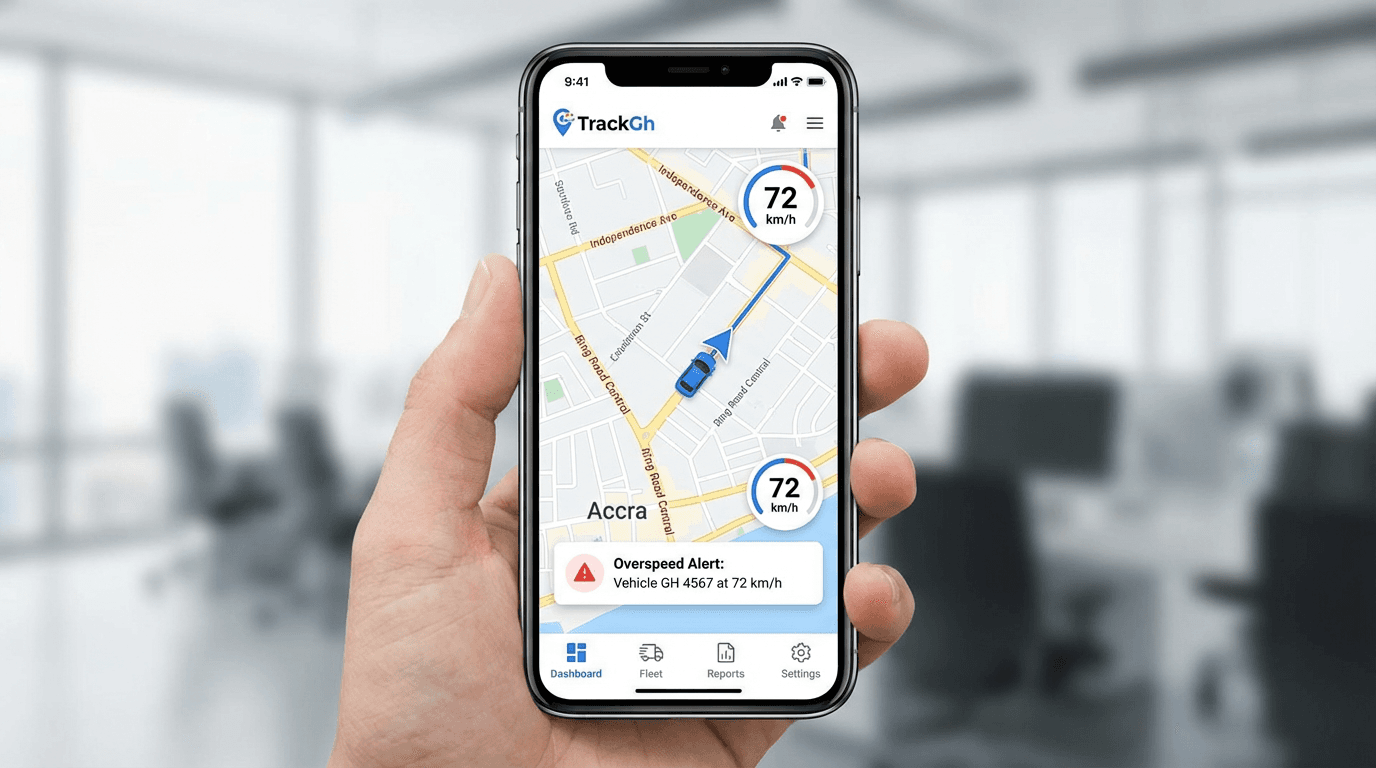
- Check each alert type: movement, speeding, geofence
- Verify notification method: push, SMS, email
Common issues:
- Geofence alerts disabled
- Speed threshold set too high
- Notifications set to email only (not push)
Check Geofence Configuration
If geofence alerts not working:
- Is the geofence drawn correctly? (Check on map)
- Is it too small? (Car may need to move further to trigger)
- Is entry/exit set correctly?
- Is the geofence active for current time/day?
SMS Alerts Not Arriving
Possible causes:
- Phone number entered incorrectly
- SMS blocked by carrier
- SMS feature not included in your plan
- Network congestion
What to do:
- Verify phone number in app settings
- Check if SMS from other sources arrive
- Contact provider to verify SMS is active
Section 4: App Problems
If the tracking app won't load, crashes, or behaves strangely:
Basic App Troubleshooting
Step 1: Force close and reopen
- Close app completely (not just minimise)
- Wait 10 seconds
- Reopen app
Step 2: Check internet connection
- Is your phone connected to data or WiFi?
- Try loading a website to verify
- Switch from WiFi to data or vice versa
Step 3: Update the app
- Check App Store/Play Store for updates
- Outdated apps may have bugs
- Update and try again
Step 4: Clear app cache (Android)
- Settings > Apps > [Tracking App]
- Storage > Clear Cache
- Reopen app
Step 5: Reinstall app
- Delete/uninstall the app
- Download fresh from app store
- Log in again
Login Problems
"Invalid credentials" error:
- Double-check username and password
- Try password reset
- Check if caps lock is on
- Contact support if still failing
"Account suspended" or similar:
- May indicate subscription expired
- May indicate payment issue
- Contact provider to check account status
App Shows No Vehicles
If you log in but see no vehicles:
- Verify you're logging into correct account
- Check if account has vehicles assigned
- Contact provider - vehicle may need to be linked to your account
Section 5: Remote Commands Not Working
If engine disable or other commands don't execute:
How Remote Commands Work
- You send command from app
- Command goes to server
- Server sends to tracker via cellular network
- Tracker executes command
- Confirmation sent back to you
Any break in this chain causes failure.
Troubleshooting Command Issues
Step 1: Verify vehicle is online
- Check last location update time
- If tracker is offline, commands can't reach it
Step 2: Verify cellular coverage
- Vehicle needs cellular signal to receive commands
- In basements/parking garages, commands may fail
Step 3: Check command status
- App should show command sent/pending/executed
- "Pending" means waiting for tracker to receive
- May take 1-2 minutes in poor signal areas
Step 4: Try again in better location
- Move vehicle to area with good signal
- Send command again
- Wait for confirmation
Engine Disable Not Working
Specific checks:
- Is engine disable feature included in your plan?
- Has the command been blocked for safety? (Some systems don't disable at high speed)
- Is there a time limit between commands?
What to do:
- Verify feature is active on your account
- Ensure vehicle is stopped or slow-moving
- Wait and retry
- Contact support if persistent
Section 6: When to Contact Support
You Should Call Support If:
- Troubleshooting steps don't resolve the issue
- Tracker hasn't updated for 24+ hours (not in dead zone)
- Physical damage suspected
- Electrical problems in vehicle after installation
- Login/account issues you can't resolve
- Billing or subscription questions
Information to Have Ready
When contacting support, have:
- Your account/phone number
- Vehicle registration number
- Description of the problem
- When the problem started
- What troubleshooting you've tried
- Error messages (screenshot if possible)
What Good Support Looks Like
Expect your provider to:
- Respond within reasonable time (same day for urgent issues)
- Be able to check your tracker status remotely
- Diagnose whether problem is device, network, or server
- Schedule technician if physical inspection needed
- Keep you informed of resolution progress
Preventing Future Problems
Regular Maintenance
Monthly:
- Open app and verify tracking works
- Check that alerts arrive (test geofence)
- Ensure subscription is active
After vehicle service:
- Verify tracker still working
- Mechanics may accidentally disconnect wires
- Check immediately, not weeks later
Seasonal:
- Test before long trips
- Verify app is updated
- Check battery health on backup-battery trackers
Keep Subscription Active
Set calendar reminders:
- 2 weeks before renewal date
- Avoid service interruption
- Many issues are simply expired subscriptions
Frequently Asked Questions
Why is my GPS tracker not updating?
Common causes: vehicle is in area with no signal (underground, rural), subscription expired, power disconnected, or tracker malfunction. First verify subscription is active, then move vehicle to open area and wait 5-10 minutes for updates.
How do I fix GPS tracker wrong location?
GPS accuracy varies based on signal quality. If consistently wrong: ensure vehicle is in open area (not garage), wait for tracker to acquire strong signal, and contact provider if problems persist - the tracker may need repositioning.
Why am I not getting tracker alerts?
Check your phone's notification settings, ensure the tracking app has notification permissions, verify alerts are enabled in the app settings, and check that battery optimisation isn't blocking the app. Also verify your geofences are configured correctly.
How do I reset my GPS tracker?
Most GPS trackers don't have user-accessible reset buttons. Contact your provider's support - they can often reset your device remotely. Never disconnect wires yourself unless instructed by a technician.
My tracker worked before but stopped - what happened?
Common causes: subscription expired, vehicle battery issues, blown fuse in power circuit, or loose wire connection. Check subscription status first. If active, contact provider for remote diagnosis or technician inspection.
Conclusion
Most GPS tracker problems fall into predictable categories:
- No updates: Usually power, signal, or subscription issues
- Wrong location: GPS signal quality, often improves in open areas
- No alerts: Phone notification settings or app configuration
- App problems: Update app, clear cache, or reinstall
- Commands failing: Signal issues, wait and retry
Before calling support:
- Check subscription status
- Verify phone notification settings
- Move vehicle to open area if signal issues suspected
- Update and restart the app
If problems persist after troubleshooting, contact your provider with details of what you've tried. Good providers can diagnose many issues remotely.
Need Help with Your Tracker?
AcesTrack provides 24/7 customer support for all tracking issues. If you're experiencing problems, our team can remotely diagnose your tracker and dispatch a technician if needed.
Contact us for troubleshooting assistance or schedule a service appointment.